UI overview
mobrule installs two pieces on the streaming PC:
- The bridge daemon: a background process (system tray icon) that talks to the cloud, runs your Pack, and serves the stream overlay. It keeps running when every window is closed; quit it from the tray.
- The Dashboard: the desktop app where you pair, pick a Pack, configure Rewards, launch the game, and watch activity. Closing the Dashboard window does not stop the bridge.
The web site (mobrule.tv) is not a dashboard. It only handles the sign-in step of pairing. All day-to-day management happens in the desktop Dashboard.
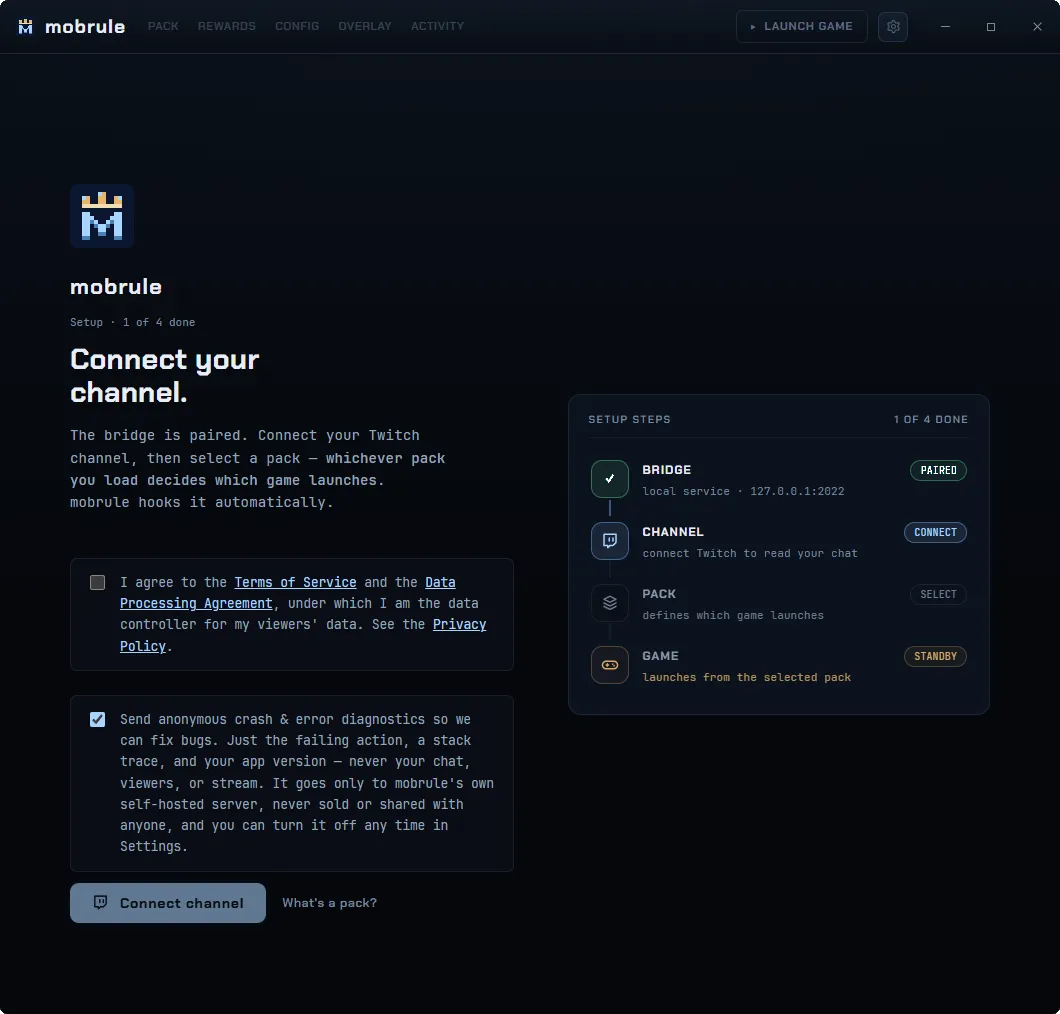
Pairing
Section titled “Pairing”Pairing is the one-time step that authorises your bridge for your channel. From the Dashboard, start pairing: your browser opens to mobrule.tv for the platform sign-in (Twitch OAuth), then hands a short-lived claim code back to the Dashboard, which completes the exchange with the bridge. No credential ever passes through the browser beyond that single-use code (it expires in 60 seconds).
Re-pairing replaces the bridge’s cloud credential; it never disturbs the game-adapter connection.
Pack picker
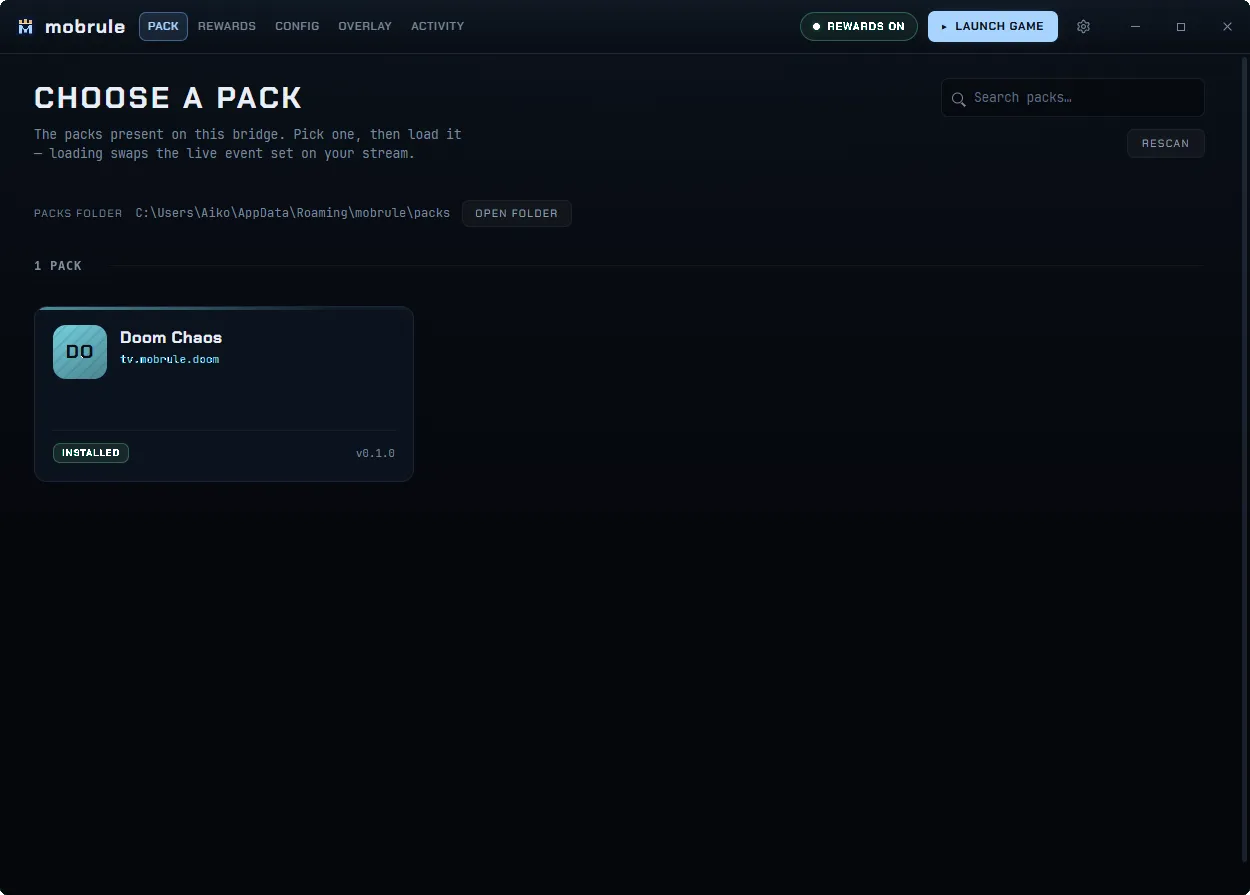
Section titled “Pack picker”The Dashboard lists the Packs found in your packs folder; activating one loads its manifest into the bridge. One Pack is active at a time.
Rewards
Section titled “Rewards”A Reward binds one of the Pack’s Events to a channel-point reward. mobrule creates and owns the reward on the streaming platform; your hand-made channel-point rewards are never touched or imported.
For each Reward you set the title, cost, cooldown, and the Event’s parameters. Parameters marked viewer-overridable by the Pack become viewer inputs at redeem time. For a composite Event (one redeem that rolls one of several effects), you compose the faces here: which member effects, their parameters, and their weights.
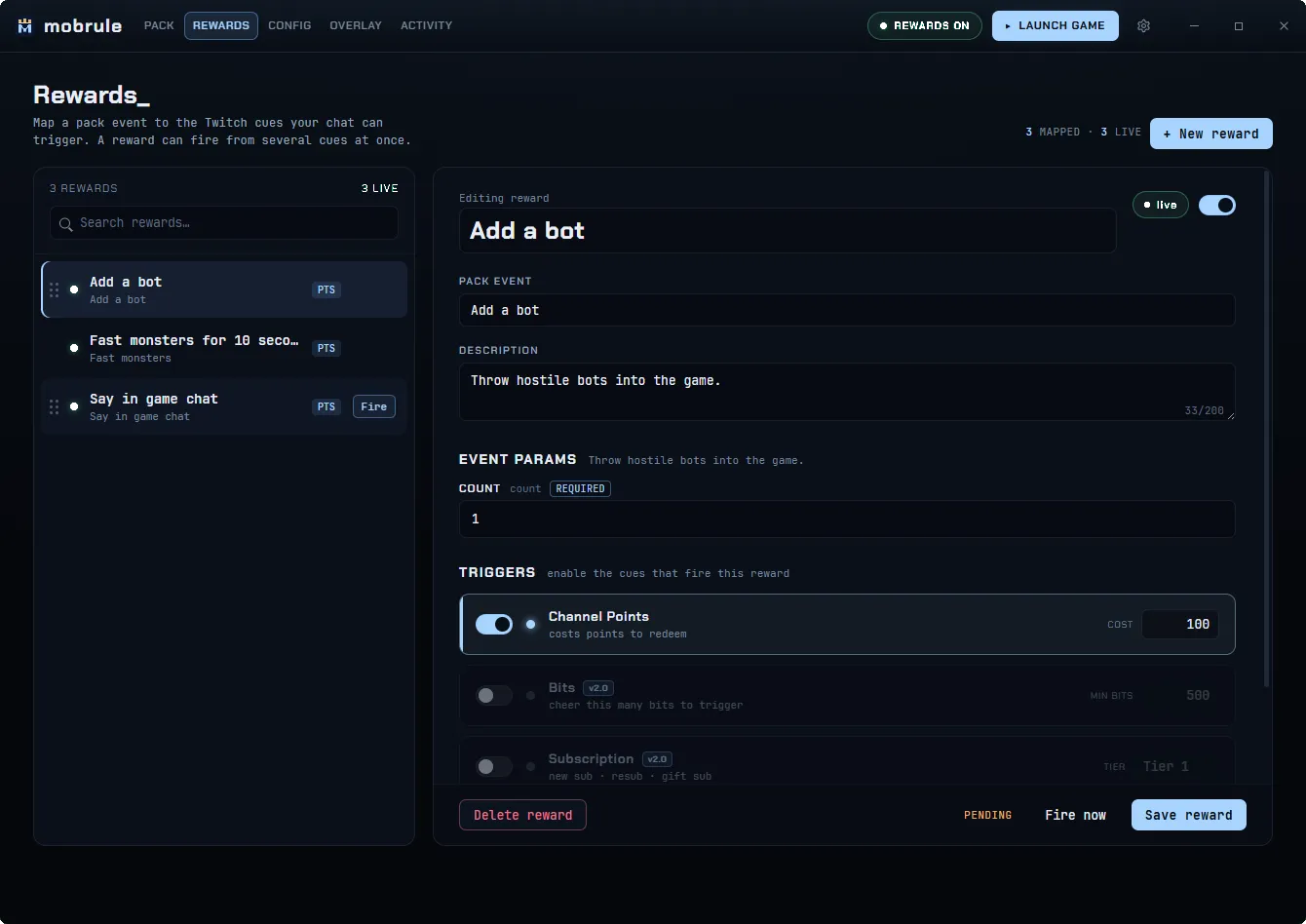
Each Reward has an enabled switch. Separately, the platform may auto-pause a Reward while the game is in a context where it can’t apply (e.g. menus). The Pack drives this, and the pause lifts automatically. A redemption that slips through while a Reward is not redeemable is refunded, not dropped.
Pack Config
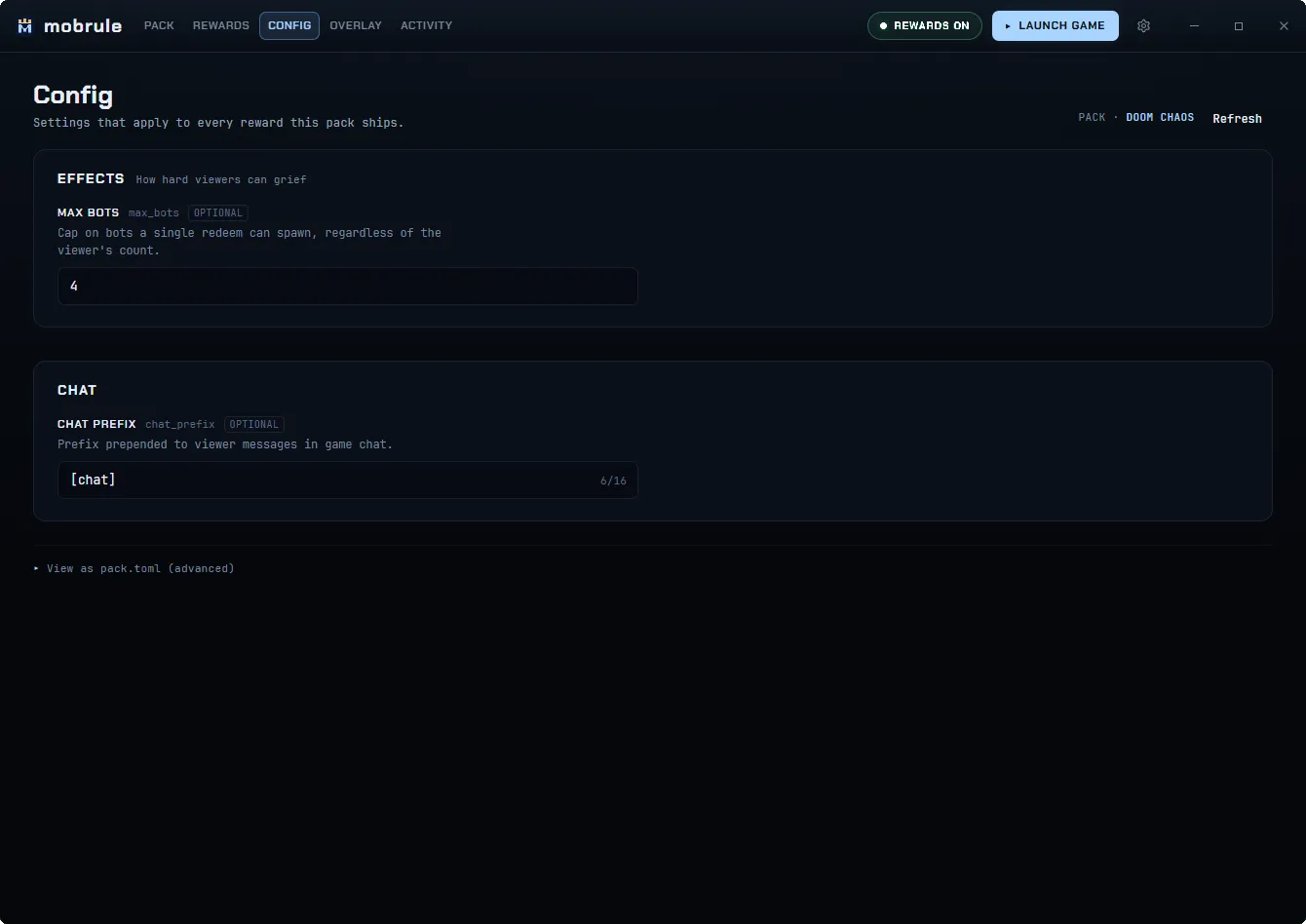
Section titled “Pack Config”Packs that declare broadcaster settings (player name, difficulty, mode toggles…) get a Pack Config page rendered from the Pack’s own declaration. Values are saved to the cloud (they follow you across machines) and delivered to the running game adapter automatically.
Launcher
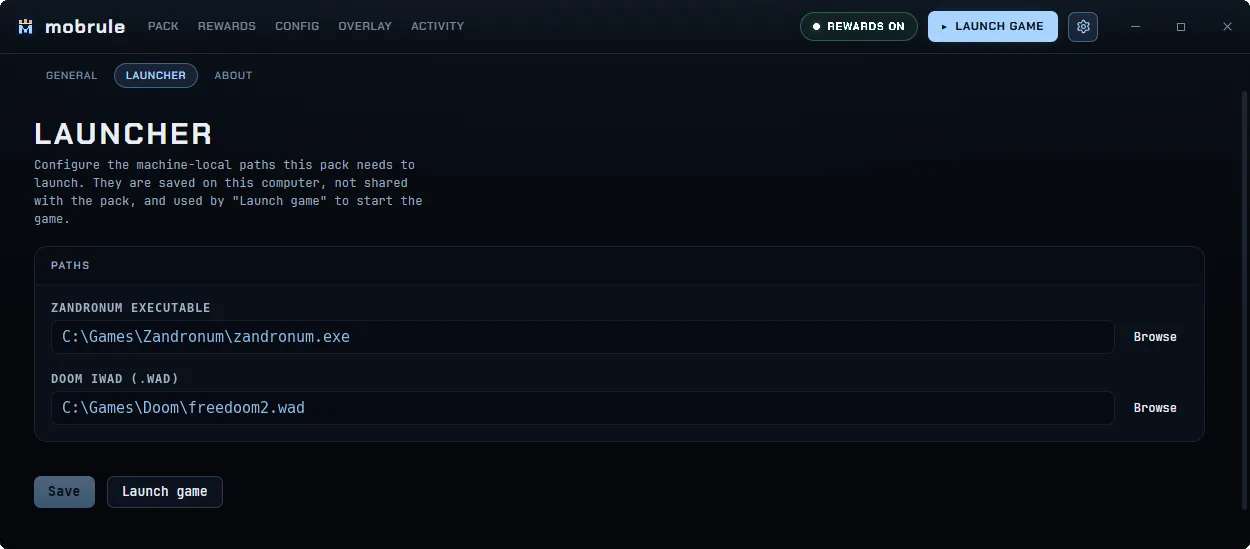
Section titled “Launcher”Packs that drive an external program (typically the game itself) declare which machine-local paths they need, e.g. the executable and its data files. The Launcher panel is where you set those paths once per machine; Launch game then starts the program with everything wired (including the adapter’s connection credential, so you never copy tokens by hand).
Overlay
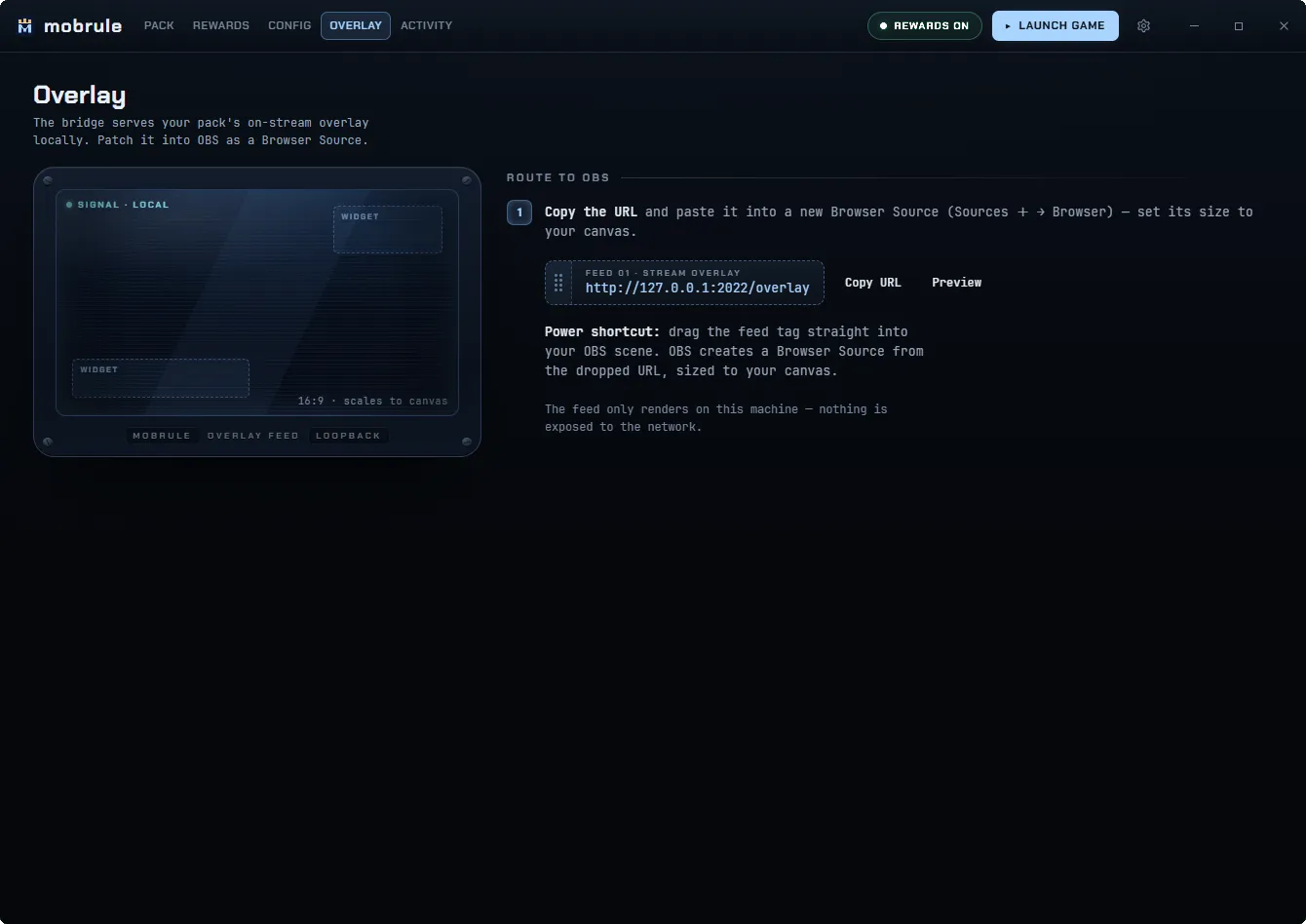
Section titled “Overlay”The bridge serves the stream overlay at a local URL shown in the Dashboard’s Overlay tab. Add it to OBS as a browser source; the active Pack’s widgets render there, fed live by the game.
Activity / audit
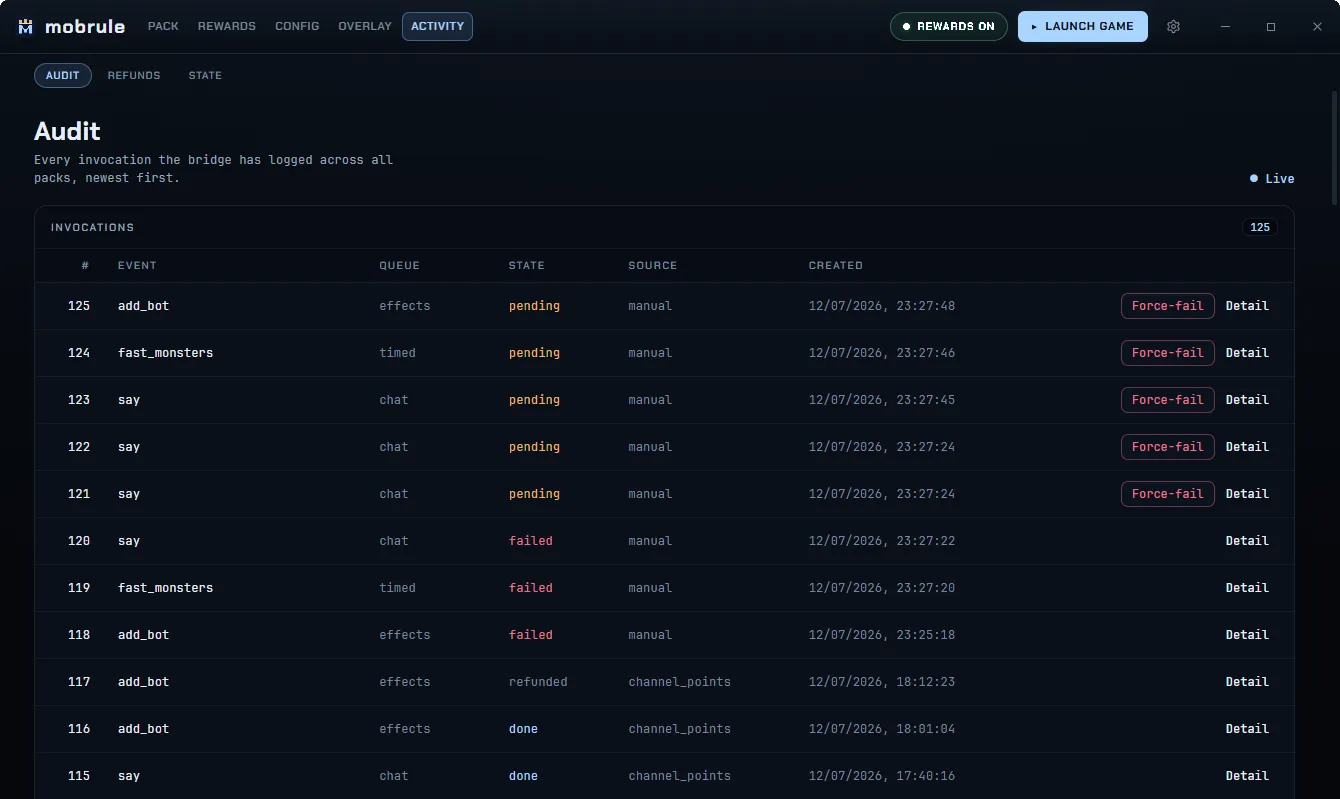
Section titled “Activity / audit”The Audit tab streams every redemption as it moves through its lifecycle (pending → dispatched → applied → done, or failed, or refunded), so you can see exactly what chat did and what the game accepted. A redemption that fails before the game applied it is refunded.
Refunds
Section titled “Refunds”The Refunds tab lists redemptions the platform could not auto-return (real money it failed to refund), with the viewer and redemption reference plus the reason. Use it to comp those viewers manually.
The State tab is a read-only view of the live pack-state the bridge holds for the active Pack: each declared state key and its current value. Check it when you want to see what the game is reporting back.
See also
Section titled “See also”- Install: getting mobrule onto the machine.
- Troubleshooting: when something doesn’t connect.
- Chat-Plays: a Pack feature (not a Dashboard panel) that lets chat vote on game input.